
Three methods show you how to track AI traffic in GA4, and they work in this order. First, read the built-in AI Assistant channel in the Traffic acquisition report. Second, filter the same report by session source to catch assistants that channel misses. Third, build a custom channel group with a regex so the visits get their own row in every acquisition report. This guide gives the exact menus, a tested pattern and a plain list of what GA4 cannot see.
How to track AI traffic in GA4: which method do you need?
| Method | Setup | Best for |
|---|---|---|
| Built-in AI Assistant channel | None | A first look at recognized assistants |
| Report filter on Session source | One filter, added each time you open the report | A quick check of assistants the channel misses |
| Custom channel group | A channel with a regex, saved once (Editor role or above) | A permanent AI row in every acquisition report |
Start with the first row. If AI traffic in GA4 already appears there and the assistants you care about are in it, the other two methods are optional refinements.
What does GA4 label as AI traffic by default?
Since 13 May 2026, GA4 has a dedicated AI Assistant channel in its default channel group. Google's release notes say a new ai-assistant medium is assigned when the referrer matches a recognized AI assistant, those visits are grouped under the AI Assistant channel, and the campaign is set to (ai-assistant).
Google's default channel group definitions add two details that matter:
- The channel covers sources like ChatGPT, Gemini, Deepseek, Copilot and Grok, and "excludes Google's AI Overviews and AI Mode." Those Google features are counted in Organic Search instead.
- The list of recognized assistants is not published. Google names examples, not the full set.
The release note does not say whether earlier data is reclassified. Treat 13 May 2026 as the first date you can rely on the channel, and use a custom channel group when you need history before it.
The table shows where each assistant is named in the Google pages read for this guide, next to the platforms LiveMentions recognizes in its Google Analytics integration.
| Platform | In Google's default AI Assistant description | In Google's custom regex example | Recognized by LiveMentions |
|---|---|---|---|
| ChatGPT | Yes | Yes | Yes |
| Gemini | Yes | Yes | Yes |
| Claude | Yes (release note) | Named in the text, no pattern for it | Yes |
| Copilot | Yes | Yes | Yes |
| Perplexity | Not named | Yes | Yes |
| Grok | Yes | No | Yes |
| DeepSeek | Yes | No | Yes |
| Meta AI | Not named | No | Yes |
| You.com | Not named | No | Yes |
Whether a given assistant sends a referrer at all is not documented on those pages. Your own data is the test.
How do you read AI traffic in the Traffic acquisition report?
Use the report GA4 already has:
- In Google Analytics, open Reports in the left menu.
- Select Acquisition, then Traffic acquisition.
- Look at the table's first column. Its default dimension is the session default channel group, so the rows are channels such as Direct, Organic Search and Referral.
- Find the AI Assistant row. If it is missing, no session in the date range matched.
- Switch the table's primary dimension to Session source. Each assistant then shows as its own row, for example
chatgpt.com.
Read three columns for each row. Sessions shows volume. Engaged sessions counts sessions that lasted 10 seconds or longer, had at least one key event, or had two or more page or screen views. Key events shows the conversions you have marked. Volume alone says little. An AI row with few sessions and a high share of engaged sessions is a different story from a large row of bounces.
How do you filter AI traffic in a GA4 report?
A report filter shows AI traffic in GA4 quickly and changes nothing in the property. In the Traffic acquisition report:
- Click + Add filter above the chart.
- Choose the dimension Session source.
- Set the match type to matches partial regex.
- Paste a pattern and click Apply.
Google's filter documentation lists the regex match types and two limits: regular expressions in report filters are case sensitive and are limited to 250 characters. A partial regex needs no wrapping, so a short pattern works:
chatgpt|openai|gemini|copilot|perplexity|claude|grok|deepseek|meta\.ai|you\.com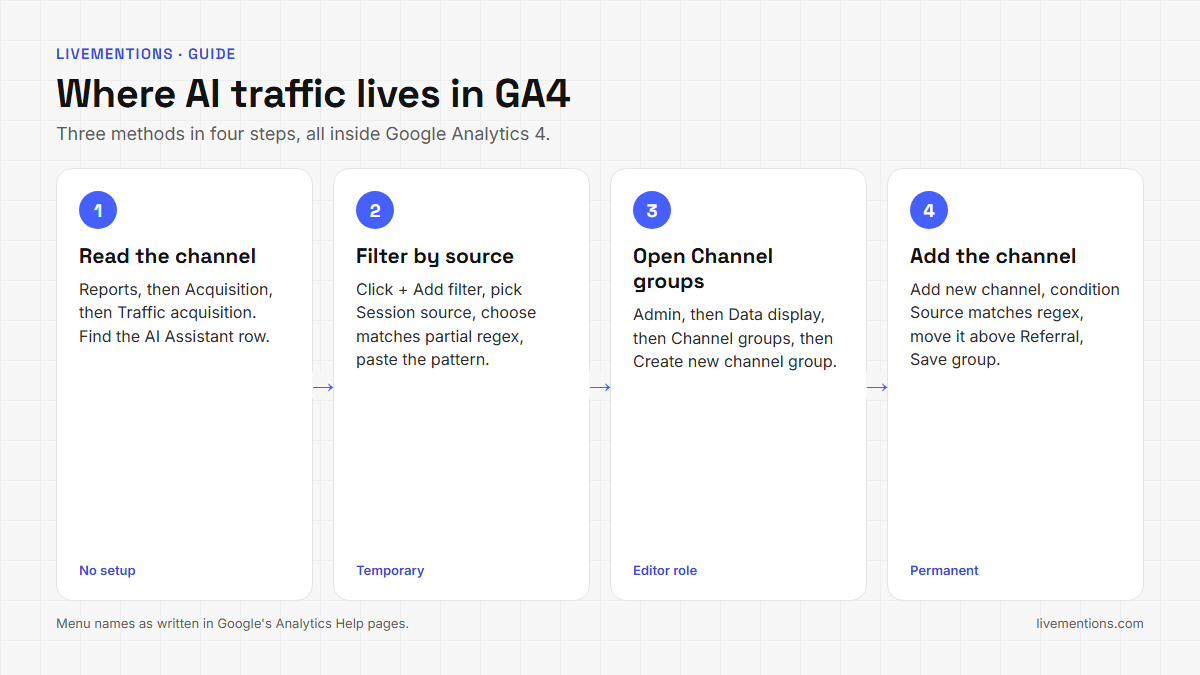
Google calls these temporary report filters, so they suit a quick check, not a monthly report.
How do you build a custom channel group for AI traffic?
A custom channel group gives AI traffic in GA4 a permanent row in the acquisition reports. Google's custom channel group guide describes the path, and an Editor role or above on the property is required.
- Open Admin, and under Data display click Channel groups.
- Click Create new channel group. It starts as a copy of the default group.
- Name the group, then click Add new channel and name the channel, for example AI assistants.
- Click + Add condition group, choose the dimension Source, set the match type to matches regex and paste the pattern. Google's example does not name the dimension, and Source is on its list of supported fields.
- Click Save channel.
- Click Reorder, drag the channel above Referral, click Apply, then click Save group.
The order step is not cosmetic. GA4 puts each session in the first channel whose definition it matches, so a channel placed below Referral never sees the visits. Google's own example says to place the AI channel above Referral, and above Organic Search if needed.
Four facts shape what you get:
- A standard property can hold 2 custom channel groups of up to 50 channels each, in addition to the default group.
- Google says custom channel groups can be applied to your reports retroactively, which is the reason to build one for history before 13 May 2026.
- The group appears as a primary dimension in User acquisition and Traffic acquisition, and as a dimension in explorations.
- Channel definitions are not case sensitive. A custom group is not available in the BigQuery export.
Which regex should the AI channel use?
Google publishes an example regex for an AI assistants channel. It is the best documented starting point, copied here as it appears on the page:
^.*ai|.*\.openai.*|.*chatgpt.*|.*gemini.*|.*gpt.*|.*copilot.*|.*perplexity.*|.*google.*bard.*|.*bard.*google.*|.*bard.*|.*.*gemini.*google.*$Google tells readers to update the pattern when the assistant list changes. A channel condition is a full match, so the pattern needs .* around each name. The pattern below does the same job for the platforms LiveMentions recognizes, and it is the author's own construction, not a Google example:
.*(chatgpt|openai|gemini|copilot|perplexity|claude|grok|deepseek|meta\.ai|you\.com).*Both patterns were run against sample source values to see what each one catches.
| Source value | Google's example | Pattern above |
|---|---|---|
| chatgpt.com | Matches | Matches |
| claude.ai | Matches | Matches |
| grok.com | No match | Matches |
| deepseek.com | No match | Matches |
| you.com | No match | Matches |
| example-tools.ai | Matches | No match |
| example-gpt-shop.com | Matches | No match |
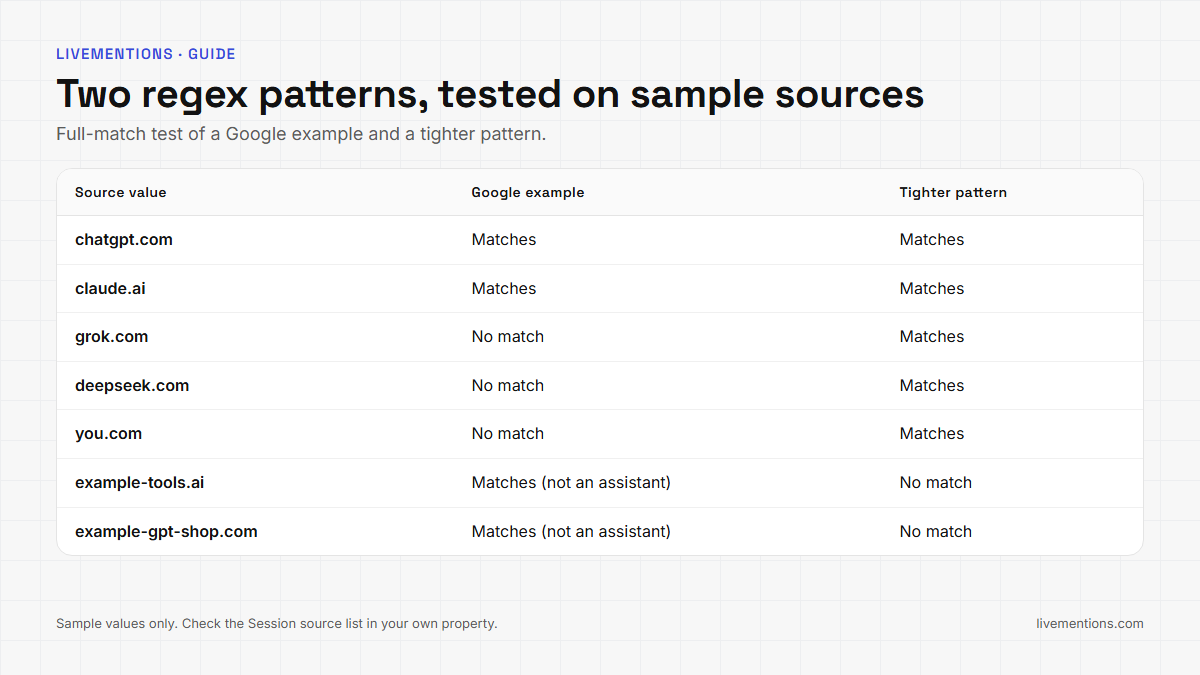
Google's example starts with ^.*ai, which matches any value that ends in "ai". That is why claude.ai and perplexity.ai match, and also why an unrelated .ai site matches. The .*gpt.* branch matches any source containing "gpt". Neither pattern is perfect. Open the Session source list in your own property, check which values each pattern catches, and adjust it. Review the list again when a new assistant appears.
What can GA4 not see?
GA4 records visits. It does not record answers, so AI traffic in GA4 is always a partial picture. Three gaps follow from that, and they decide how far the numbers can be trusted.
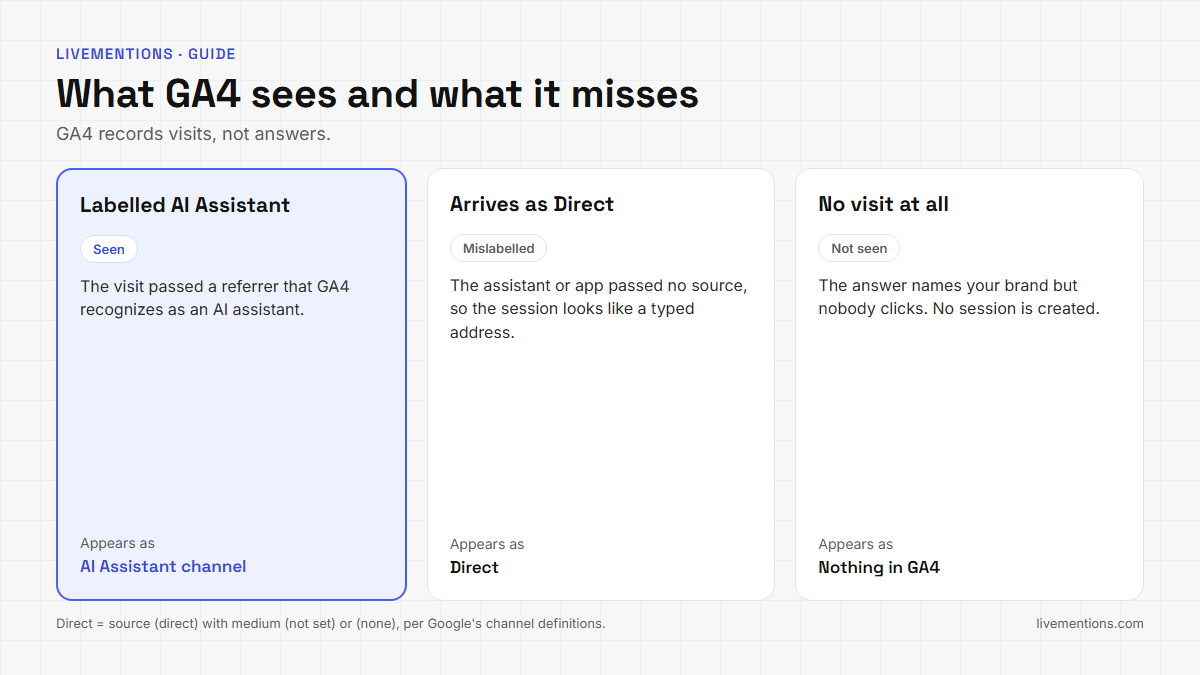
1. Visits that arrive without a referrer. Google defines Direct as a session whose source is (direct) and whose medium is (not set) or (none). When an assistant or app does not pass its address, the visit lands there. LiveMentions' own help page says the same: some AI tools do not pass their source, so Google Analytics labels the visit Direct. The Referer header documentation explains why: what a browser sends depends on the referrer policy.
2. Answers that name you without a click. An assistant can recommend your brand and the reader can open a new tab and type your address, or never visit at all. No session, no channel, no row. Any measure that starts from visits misses these answers.
3. The question behind the visit. GA4 shows the source and the landing page. It does not show which prompt produced the answer that sent the visit.
One more pattern is easy to misread. Visits from Google's AI features are counted in Organic Search by Google's definition, so they are not in the AI Assistant row. A rise in Organic Search can therefore include them.
What should you do with the numbers?
Keep the three methods side by side and write down the date each started. Turning those numbers into a business case is covered in how to measure AI search ROI. A useful monthly read is short:
- AI Assistant sessions, engaged sessions and key events for the month.
- The top landing pages in that row, because they show which pages assistants send people to.
- The Direct row, noted as the pool where untagged AI visits can hide.
If GA4 shows AI visits and you want them by platform and landing page without building reports, the LiveMentions AI Referrals page reads the same property. It counts a visit when Google Analytics labels it AI Assistant traffic or when it comes from a known AI platform, and it counts nothing it cannot identify. The page explaining why numbers differ from Google Analytics covers why its total is stricter than Referral or Direct in GA4.
Frequently asked questions
Does GA4 track ChatGPT traffic automatically?
Yes, for recognized assistants. Google's release notes say visits whose referrer matches a recognized AI assistant get the ai-assistant medium and the AI Assistant channel. Google does not publish the recognized list, so confirm in your property that the assistants you care about appear in the Session source rows.
Why is my AI traffic in GA4 showing as Direct?
Because the visit arrived without a referrer. Direct is the channel for sessions with the source (direct) and a medium of (not set) or (none). Some AI tools do not pass their source, and the help page on missing AI traffic lists the other common reasons, such as a date range with no AI visits.
Do I need a custom channel group if GA4 has an AI Assistant channel?
Not always. A custom group helps when you need history before 13 May 2026, want separate rows per assistant, or need platforms the default list may not name. Google says custom groups can be applied to reports retroactively.
Can GA4 show which prompt sent a visit?
No. GA4 reports the source, the medium and the landing page. To see the prompts and the answers behind the visits, track the answers themselves.
Pair the visits with the answers behind them
GA4 tells you who arrived. It cannot tell you which answers named your brand, in what order, or with which sources. LiveMentions tracks your buyer prompts on ChatGPT, Claude, Gemini and Perplexity and keeps the full answers, and its AI Referrals page connects the same Google Analytics property on paid plans. Then put the answer data into a client-ready AI visibility report. Set up the channel group this week, note the date, and compare it with your answer data a month from now. That is how to track AI traffic in GA4 and see what it comes from.
Ready to see your own AI visibility?
Start Free Trial
Shahin Salehin
I’m Shahin, founder of LiveMentions and a software product builder with years of experience building WordPress plugins and tools for real businesses. My work has given me a practical perspective on product development, search, content, and how businesses build visibility online. With LiveMentions, I’m now focused on AI search and helping brands understand how they are represented across AI-generated answers. I write about AI brand visibility, AI search, and practical strategies based on research, experimentation, and what I learn from building in this space.
Articles: 24